My Wallets
Create, organize, fund, and run activity on wallets.
Create wallets and organize them into folders from My Wallets.
Create wallets
Open My Wallets and select the network.
Select + Create, then Create New.
Enter the Number of Wallets and select Create.
Add the new wallets to one or more folders, or select Skip.
Organize folders
Select + Create New Folder, enter a name, choose a color, and confirm.
Select the wallets in the table.
Open Manage.
Check folders to add the wallets, or clear them to remove the wallets.
Use the folder menu to Edit Folder, Archive Folder, or Delete Folder.
Fund wallets
Select the wallets and open Funding.
Choose Classic Funding or CEX Funding.
Set a fixed or range amount and an optional Funding Delay.
Review the source, destinations, and amounts, then select Start Funding.
Generate activity
Select compatible wallets and choose Generate Activity.
Set a fixed or range amount.
Set the Loop Count and delay.
Enable Alternative Routing if needed, review the operation, and select Start.
Inspect and maintain wallet inventory
Wallet details and table settings
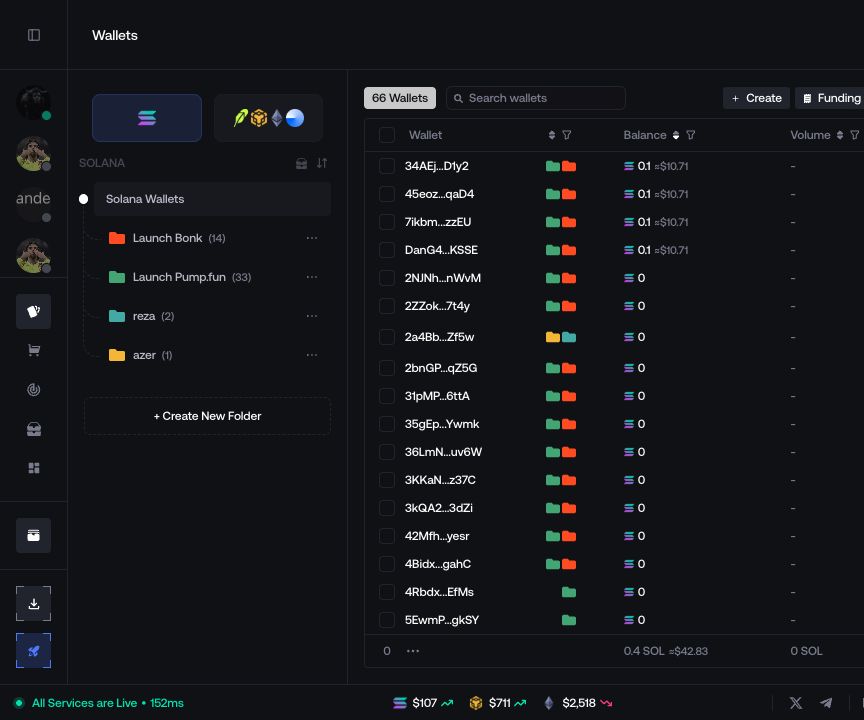
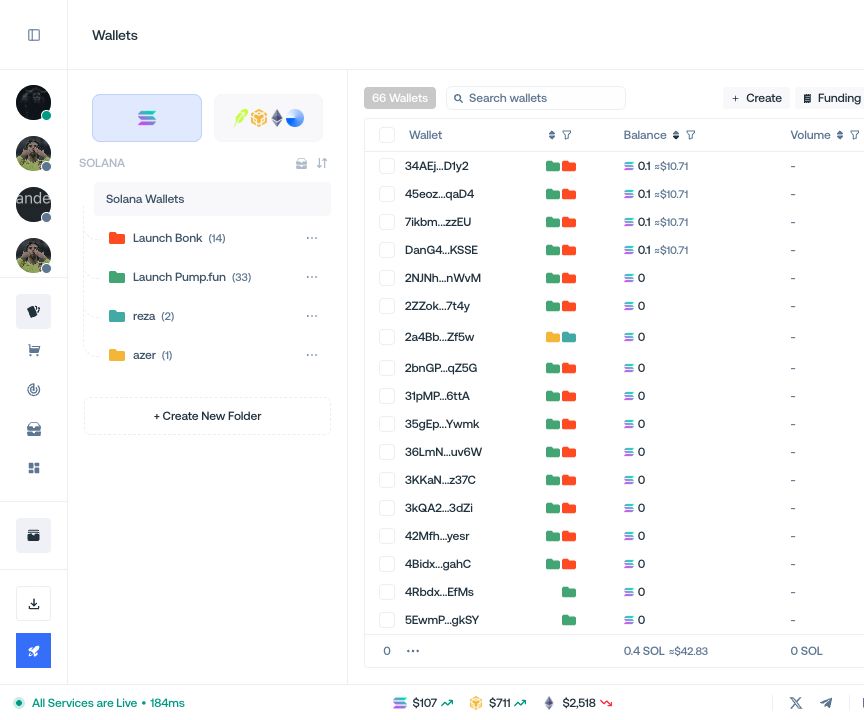
Open a wallet row to inspect its address, folders, balances, and available actions. Use the table settings control to choose which balance and activity columns remain visible.
Search, filter, and sort before selecting a batch. Recheck the final selection after changing a filter because hidden rows can remain part of an earlier selection.
Withdraw wallet balances
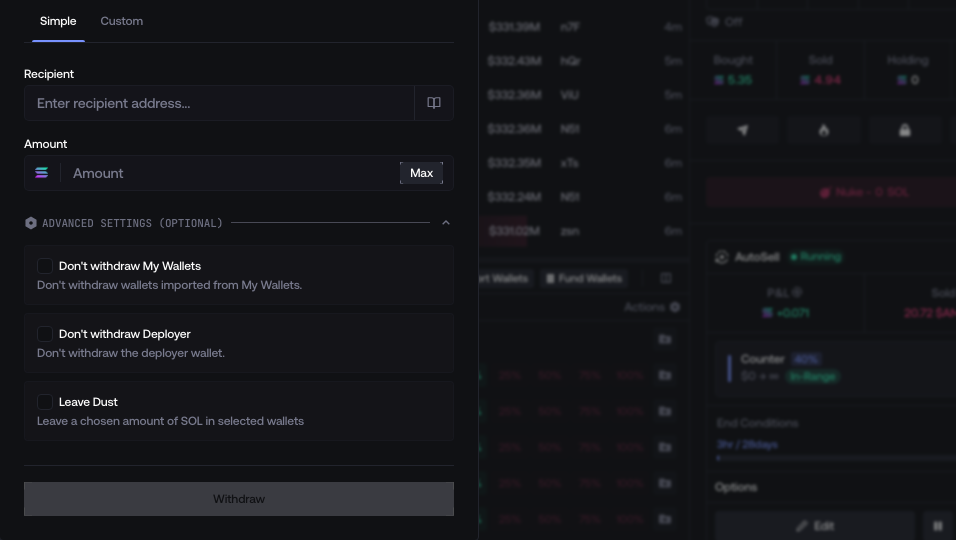
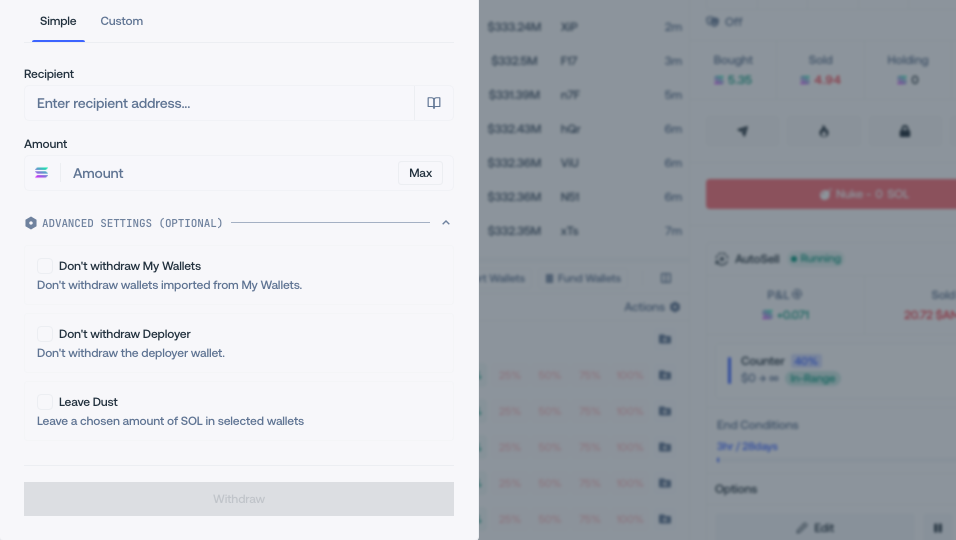
Select the intended wallets, open Withdraw, and choose the destination and assets. Review which balances are spendable after network fees, then submit once.
After the batch completes, compare every source wallet, destination, and transaction in Activity before retrying a failed row.
Archive folders or delete wallets
Archived folders leave their wallets intact and can be restored from Archived Folders. Deleting a folder also leaves its wallets in the main list.
Deleting wallets is different. If selected wallets still contain recoverable assets, use Withdraw and Delete and verify the destination before confirming.
Export tracker-compatible addresses
Open the export menu for the current or selected wallet set, then choose Axiom Tracker Export, GMGN Tracker Export, BullX Tracker Export, or RayBot Tracker Export.
The export copies address data in the selected tracker’s expected format. It does not transfer assets or share private keys.