Skip to content
Documentation

Search is only available in production builds. Try building and previewing the site to test it out locally.

Clone Token

Copy an existing token's metadata, then configure a new launch.

Ask ldoc

Documentation assistant

Page context
Clone TokenCopy an existing token's metadata, then configure a new launch.

Ask a question or jump directly to a relevant operational guide.

Searches curated Proxima guides · Esc

Use cloning when an existing token or Proxima launch already has the public details you want to reuse. Cloning prepares a separate launch; it does not change the source token or source launch.

  1. Choose the source

    Paste the source token address on the Clone Token page.

    Clone a Token page with the source token address and token details loaded Clone a Token page with the source token address and token details loaded

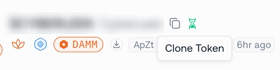
    Or select the Clone button on an existing Proxima Live or Draft launch.
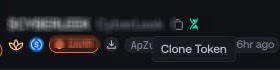
    Clone control beside the token name on a Proxima Live launch Clone control beside the token name on a Proxima Live launch

    Both paths load the available public metadata into the same clone form.

  2. Review the prefilled details

    Check the name, symbol, description, image, and social links. Use the edit control to change the public details for the new launch when needed.

    Prefilled token metadata ready for clone review Prefilled token metadata ready for clone review
  3. Choose the new launch route

    Select the network, launchpad, quote asset, and any integration-specific options displayed for the clone. The source launch does not make these choices valid for the new route.

    Launchpad route selector for the cloned token Launchpad route selector for the cloned token
  4. Create the cloned draft

    Select Clone Token. Proxima creates a separate launch draft and opens its Launch Settings page.

    Clone Token action after reviewing the new route Clone Token action after reviewing the new route